Hello Job Tracker
Finding your way around
The sidebar has everything, in two groups:
- + Add job at the top reads a new job from its link.
- Jobs: Dashboard (home: where your search stands, what needs you, and your jobs), Insights (what is working in your search, see Insights) and Bookmarklet (a button for your bookmarks bar that adds a job from any site, see The bookmarklet). The archive, where the jobs that ended are kept (nothing in it is deleted), is the dashboard's Archived tile.
- You: Profile, Settings and Help (this guide).
- Sign in to keep your work appears near the bottom while you are not signed in, with the free trial's line under it while you have no key of your own.
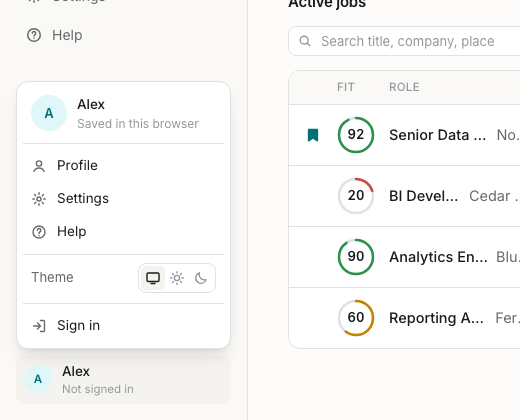
- Your account sits at the bottom. Click it for the colour theme (System, Light or Dark) and Sign in or Sign out.
On a phone or a tablet the sidebar folds away: the bar at the top has the menu button (☰), the name, and Add job. The menu opens the same sidebar over the page, and closes when you pick a place.
Dashboard
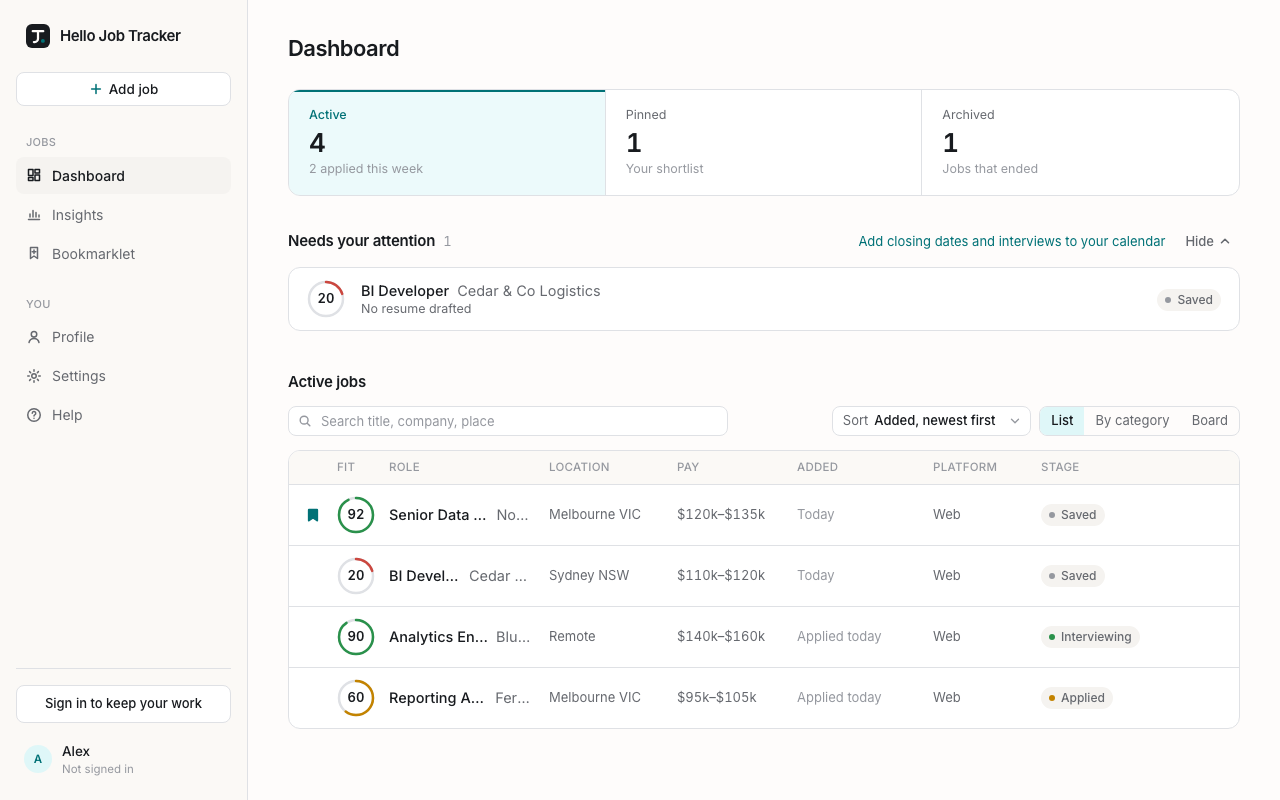
Three tiles sit at the top: Active (every job in progress, and how many you applied to this week), Pinned (your shortlist) and Archived (the jobs that ended). Click a tile to show those jobs in the list below it; the rest of the dashboard stays as it is. The chosen tile is highlighted.
Needs your attention appears when something does: interviews in the last few days (a thank-you is still timely), applications waiting a week or more for a reply (a follow-up may help), jobs that close within a week, and jobs with no resume drafted yet. It shows the first three; Show more opens the full list on its own page. Hide folds it away to one line that says how many jobs need you and why, and it stays folded until you choose Show. Add closing dates and interviews to your calendar downloads a calendar file.
Below them, the jobs the chosen tile counts (Active jobs at first), as a list, by category or as a board (see Keeping track of your jobs). Search is on the left; Sort and the layouts are on the right. When a view has no jobs at all, it says what the view is for and offers the next step instead: + Add a job and Set up the bookmarklet for Active, or Show active jobs for an empty Pinned or Archived.